
In today’s digital landscape, a strong password just isn’t enough to keep your data safe. Passwords can be guessed, leaked, or stolen. That’s where Two-Factor Authentication (2FA) comes in. By requiring a secondary piece of information – a temporary code generated on your mobile device – you ensure that even if someone gets your password, they still can’t access your account.
Setting up 2FA might sound technical, but it only takes a couple of minutes. Here is your step-by-step guide to getting it set up and using it for future logins.
Step 1: Log in to your account
To get started, you’ll need to log into your account using your standard credentials. Navigate to the login portal, enter your email address, and type in your password.
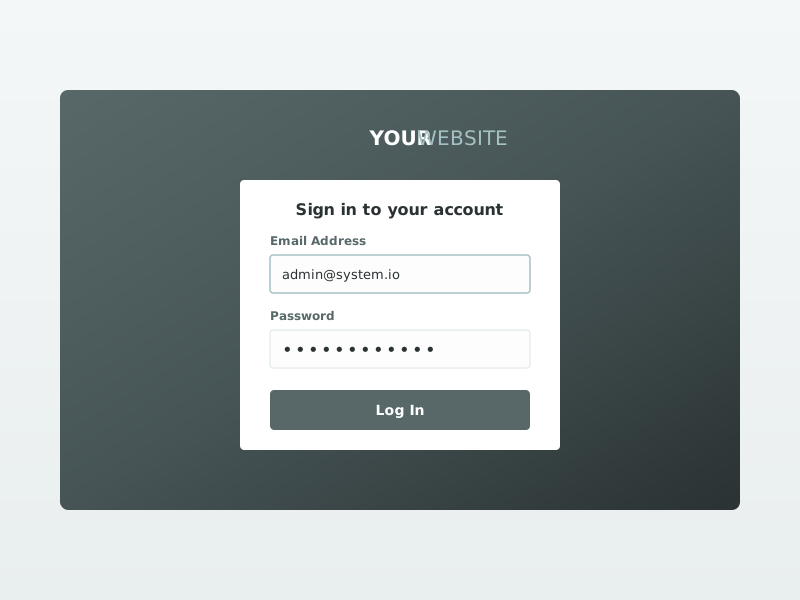
Once you click Log In, the system will recognize that your account requires enhanced security and will automatically prompt you to configure Two-Factor Authentication.
Step 2: Prepare your authenticator App
To generate your secure login codes, you’ll need an Authenticator App on your smartphone. If you don’t have one, download a trusted app from the iOS App Store or Google Play Store. Popular options include:
- Google Authenticator
- Duo Mobile
- Authy
- Microsoft Authenticator
Once your app is installed, look back at your computer screen. You should see a setup window displaying a QR code.
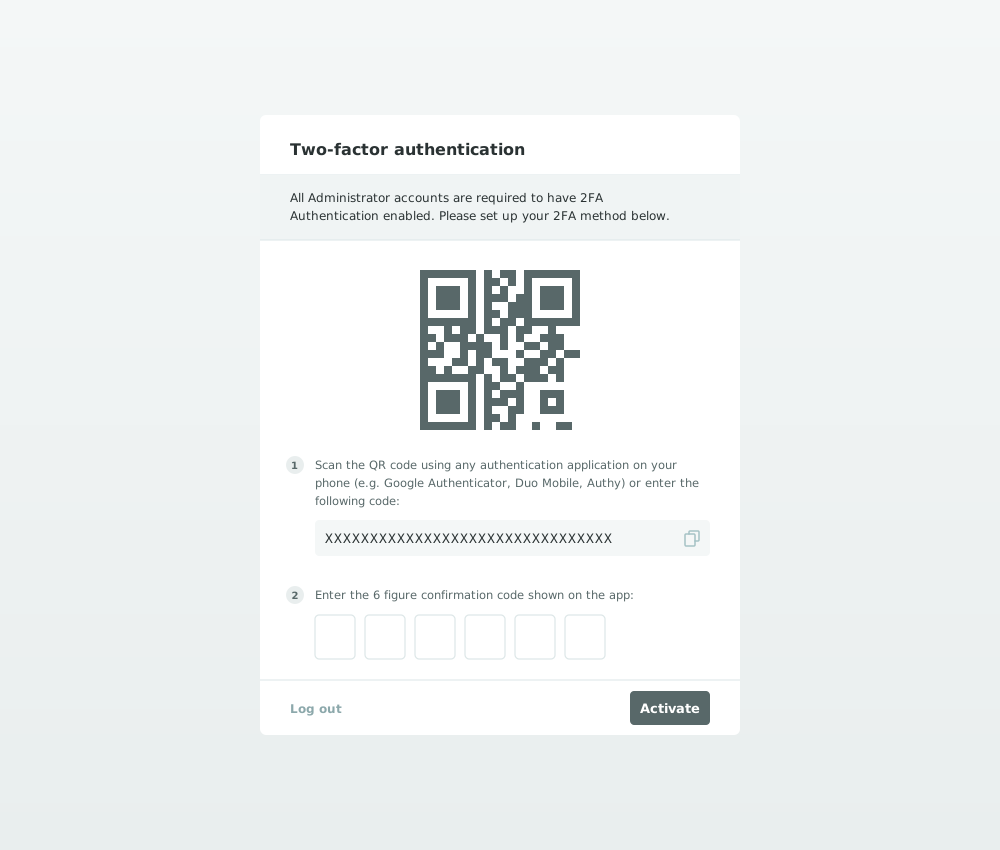
Step 3: Scan the QR code
Open the authenticator app on your phone and look for an option that says “Add Account” or a “+” icon. Select the option to “Scan a QR code.”
Hold your smartphone up to your computer screen, centering the QR code inside the camera bracket on your phone.
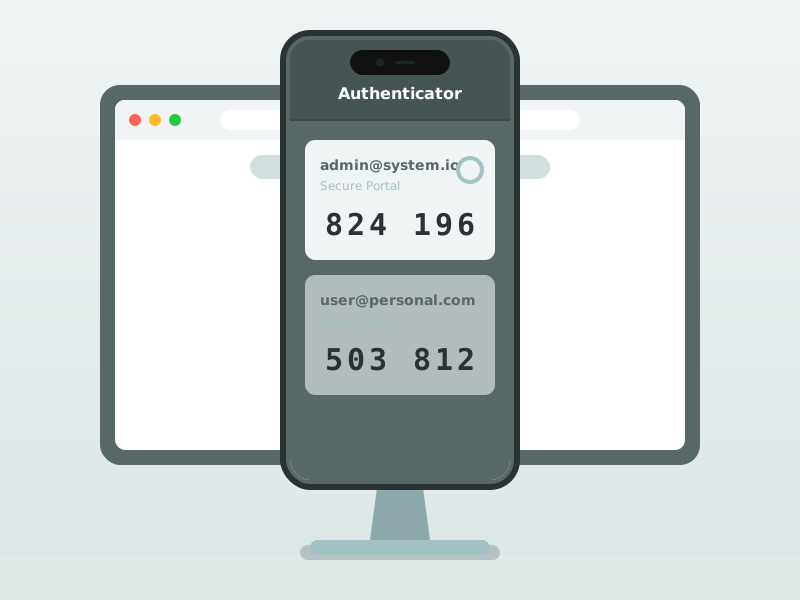
Note: If your camera is broken or you cannot scan the QR code, you can manually type the long alphanumeric setup string (located just beneath the QR code on your computer screen) directly into your app.
Step 4: Verify your device
Once your phone successfully scans the code, your authenticator app will instantly generate a new profile for your website.
You will see a 6-digit code on your phone screen alongside a small timer (usually a shrinking pie chart). Because these codes are time-based, they expire every 30 seconds to ensure maximum security.
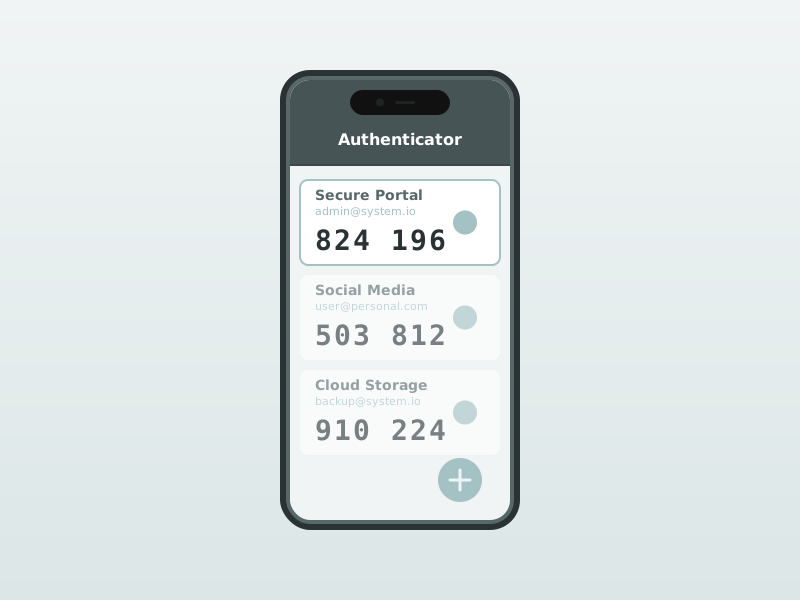
Look at the current 6-digit code on your phone and type it into the confirmation boxes on your computer screen. Click Activate.
Congratulations! Your account is now secured with Two-Factor Authentication.
How to log in using 2FA in the future
Now that you’ve done the hard work, logging in going forward is a breeze.
The next time you visit the portal, you will enter your username and password exactly like you did in Step 1. However, instead of immediately opening your dashboard, you will be greeted by a security verification screen.
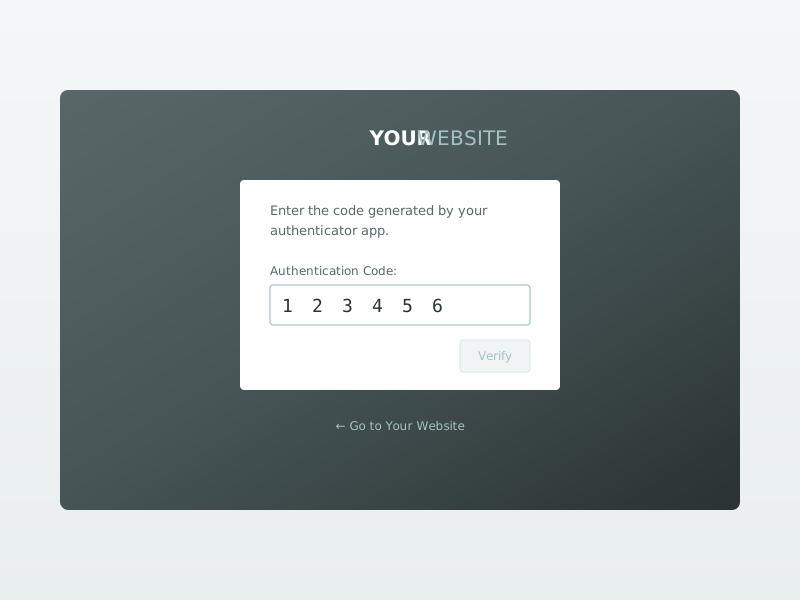
Simply:
- Open the Authenticator app on your phone.
- Find the 6-digit code for your account.
- Type the code into the verification box on your screen.
- Click Verify.
You’re in! By taking three minutes to set this up, you have exponentially increased the security of your account and your website.